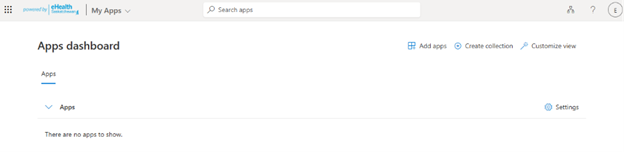
eHS guest account multifactor authentication set up
Contact Service Desk
- You will receive an invite email to your inbox.
- Click the Activate Account link to start the acceptance process.
- Sign in by entering your email address and clicking “next."
- Enter the code sent to your email address.
Here's a sample of what that email will look like if using Gmail:
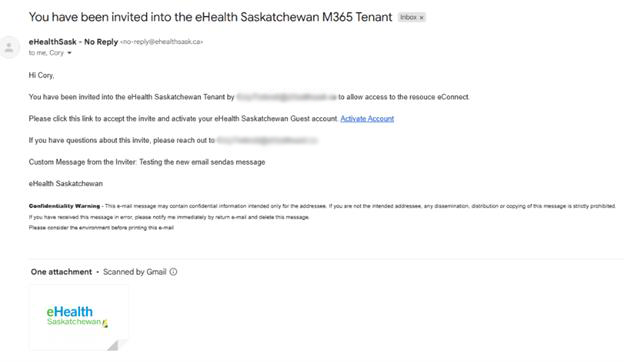
The email code is used by the Identity Directory to validate the user because accounts don’t have passwords within our system. Not all external guest accounts will receive the email code ‒ Microsoft accounts with a third-party identity system may have other authentication methods.
The user will be required to set up multifactor authentication for the eHealth system.
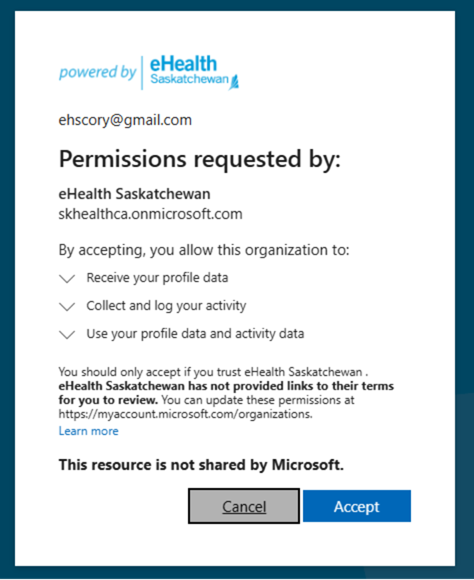
5. Accept the permission request.
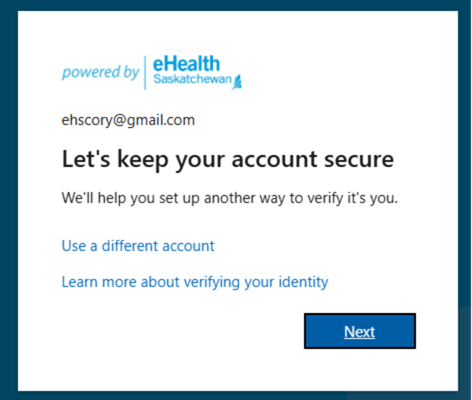
6. Click next to setup Microsoft Authenticator.
7. Follow the on-screen prompts to register your mobile phone and Microsoft Authenticator app.
8. Open Microsoft Authenticator on your mobile phone.
9. Click the three dots or + sign (depending on your phone's operating system).
10.Choose work/school account.
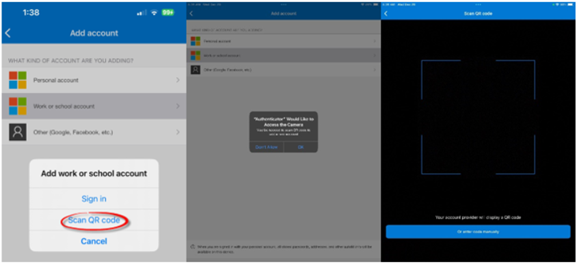
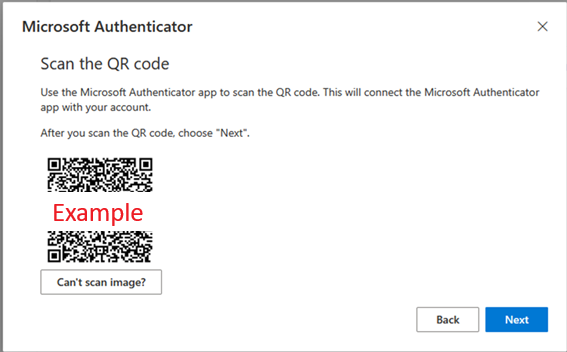
11. Scan the QR code on your computer and click Next.
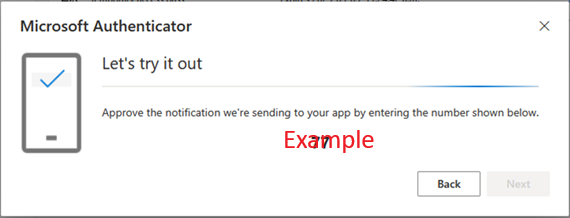
12. On your mobile phone, enter the two numbers shown on your computer screen.
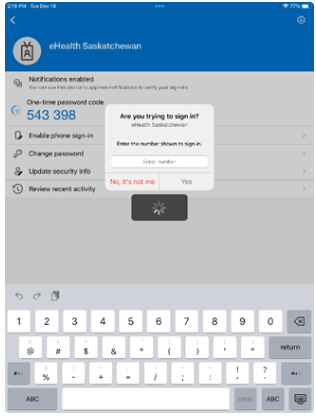
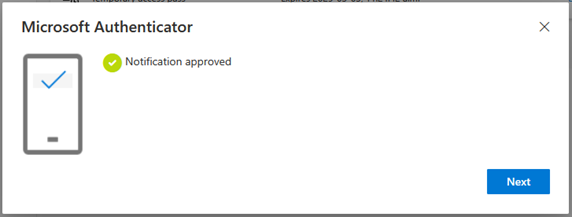
13. You've completed registration for Microsoft Authenticator and have an account in the eHealth Tenant.
Users may receive other emails about accessing specific resources.